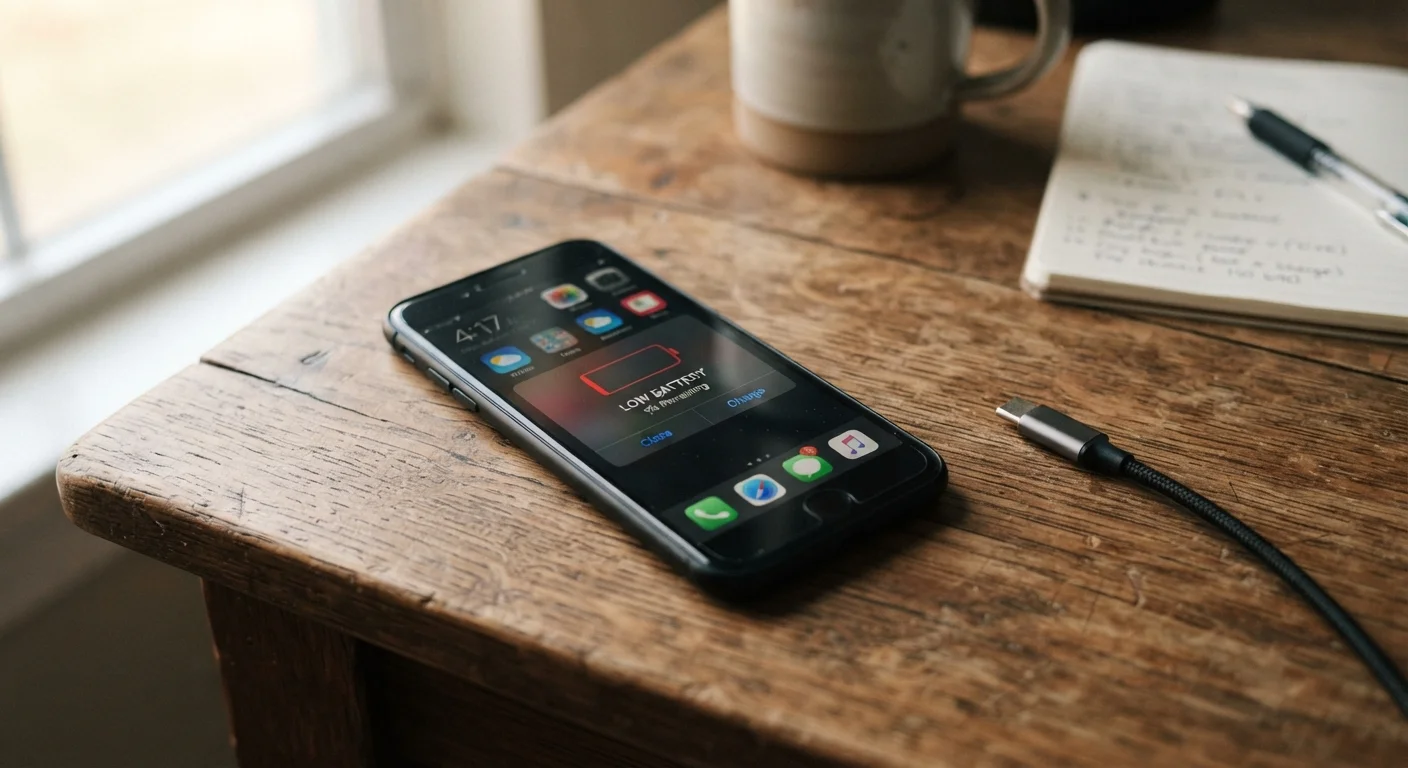
Why Battery Drain Feels Like a Mystery
Most people notice their phone dying faster than expected but can't pinpoint why. The culprit is rarely one thing — it's usually a combination of settings left at factory defaults, habits based on outdated advice, and normal hardware aging. Understanding what actually consumes power gives you real control over your device.
Modern smartphones manage power across dozens of simultaneous processes: radios, sensors, app syncing, display rendering, and more. When several of these are poorly configured, battery drain compounds quickly. The good news is that most causes are fixable without buying anything new.
If you've been following charging routines based on old assumptions, it's worth reviewing the common gadget myths that may be working against you.
The Mistakes That Drain Your Battery Fastest
The following errors account for the majority of premature battery drain. Each one is common, easy to overlook, and straightforward to correct.
Keeping screen brightness at maximum all the time.
Why it happens: Factory defaults often set brightness high for an impressive out-of-box experience, and many people never adjust it.
Allowing every app to use location services in the background.
Why it happens: Apps request location access during setup and most users tap "Allow Always" without considering the ongoing power cost.
Leaving push email and notifications turned on for every app.
Why it happens: Notifications are enabled by default, and disabling them feels like missing something important.
Charging your phone to 100% and leaving it plugged in indefinitely.
Why it happens: The intuition that "more charge is always better" is understandable, but lithium-ion batteries experience added stress when held at full charge for extended periods.
Using your phone in areas with very weak cellular signal without switching to airplane mode.
Why it happens: People assume a connected phone is always fine, not realizing that hunting for signal is one of the most power-intensive things a cellular radio does.
Fixing even two or three of these issues can meaningfully extend how long your phone lasts on a single charge. Your phone also has built-in tools to help — see features you may not be using for a useful walkthrough of battery and power settings hiding in plain sight.
What Actually Affects Long-Term Battery Health
Beyond day-to-day drain, the underlying capacity of your battery shrinks over time. Lithium-ion batteries — the type used in virtually all modern smartphones — degrade with each charge cycle. After roughly 300–500 full cycles, most batteries hold noticeably less charge than when new. This is a normal, expected process, not a defect.
Heat Damages Your Battery Permanently
Exposure to high temperatures — whether from direct sunlight, a hot car interior, or heavy use while charging — causes irreversible chemical damage to lithium-ion cells. Unlike a drained battery that recovers when charged, heat-related capacity loss is permanent. Keep your phone out of direct sun and remove thick cases during long charging sessions if the device feels warm.
Heat is the single biggest accelerator of battery aging. Leaving your phone in a hot car, using it heavily while charging, or keeping it in a case that traps heat all speed up capacity loss. Keeping your phone cool — especially during charging — is one of the most effective things you can do for long-term battery health.
Most phones now include a battery health indicator in settings (look under Battery or Device Care). When capacity drops below roughly 80%, you'll notice a significant change in daily endurance. At that point, a battery replacement — through the manufacturer or an authorized repair provider — is often more cost-effective than upgrading your entire device.
~500
Typical full charge cycles before noticeable capacity loss
Lithium-ion battery manufacturers generally rate cells for 300–500 full cycles before capacity drops to around 80% of original.
Up to 40%
Battery drain attributable to the display
Device testing by hardware analysts consistently finds the screen is one of the top two power consumers on a smartphone, alongside cellular radios.
Getting Your Settings Right
Once you've corrected the habits covered above, a few targeted setting changes deliver the biggest remaining gains:
- Enable adaptive or auto-brightness rather than keeping brightness pinned at maximum.
- Audit location permissions — go to Privacy > Location Services and switch apps from "Always" to "While Using" or "Never" where appropriate.
- Limit background app refresh to only the apps that genuinely need it, such as messaging or navigation.
- Use Wi-Fi when available. Maintaining a cellular data connection — especially in areas with weak signal — forces your phone's radio to work harder and draw more power. A strong Wi-Fi connection is consistently more efficient. If your home network feels sluggish, common Wi-Fi slowdowns explains what's likely affecting your connection.
- Turn on Low Power Mode when you're under 30% — this alone can add hours by pausing background tasks that aren't immediately necessary.
These adjustments take under ten minutes and require no apps, no accessories, and no technical expertise.