Why Your Internet Feels Inconsistent
A fast internet plan doesn't automatically mean fast, steady internet in every room. Your connection speed is only one piece of the puzzle. The equipment in your home, how it's positioned, and how your network is configured all play equally important roles in what you actually experience day to day.
Common culprits behind spotty coverage include physical obstructions like thick walls and appliances, interference from neighboring Wi-Fi networks, outdated router hardware, and too many devices competing for bandwidth at once. Understanding these factors is the first step toward fixing them. For a deeper look at how speed myths can mislead your diagnosis, see common internet speed myths that often cause confusion.
Proven Practices for a More Reliable Home Network
These approaches address the most common sources of home internet inconsistency. You don't need to implement all of them — even one or two changes can produce noticeable improvements.
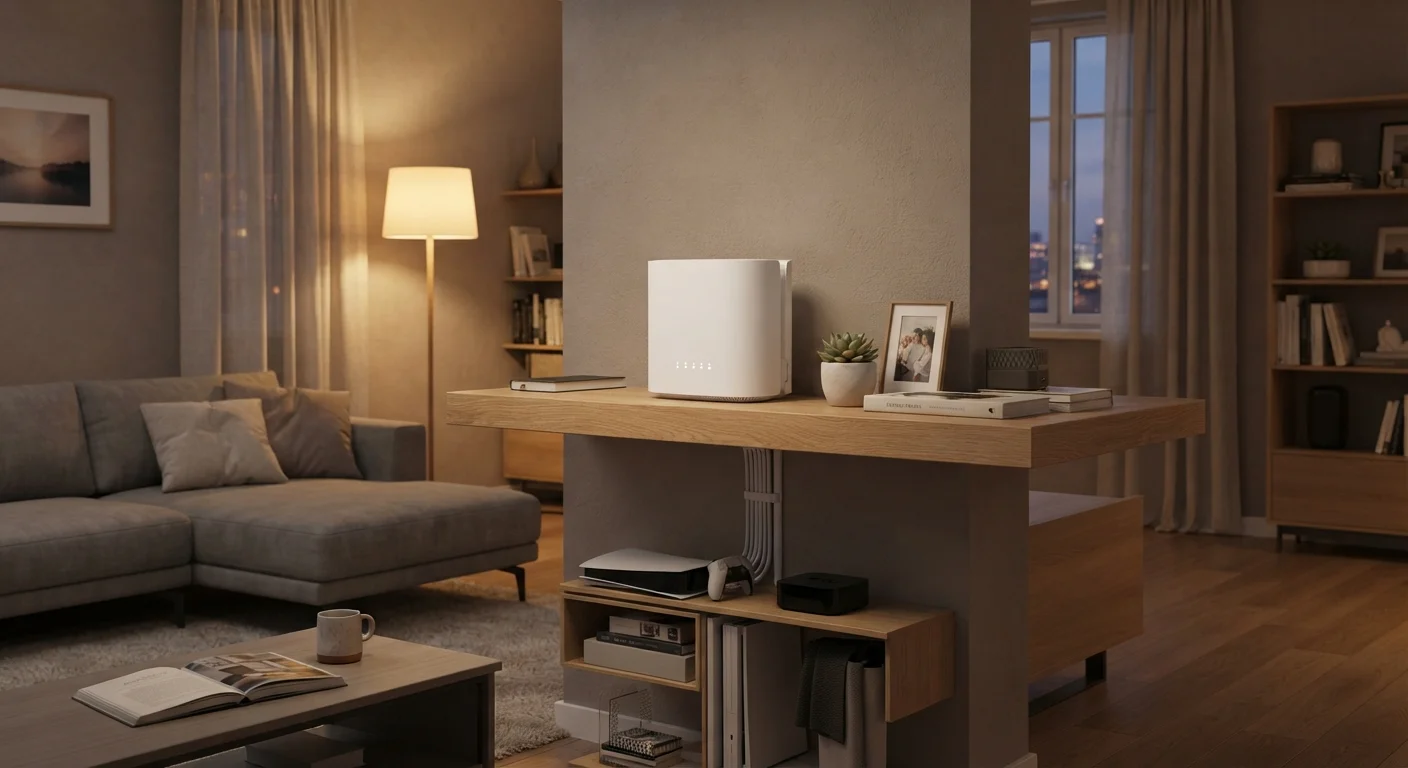
Place your router in a central, elevated location away from walls and obstructions.
Wi-Fi signals radiate outward in all directions, so a centrally positioned router distributes coverage more evenly. Placing it on the floor or tucked in a corner forces the signal to travel through more obstacles before reaching your devices.
Connect stationary devices — desktops, smart TVs, gaming consoles — via Ethernet cable.
A wired connection eliminates Wi-Fi variability entirely for devices that don't need to move. This reduces the load on your wireless network and provides more consistent speeds for high-bandwidth activities like video streaming or gaming.
Keep your router's firmware updated.
Router manufacturers release firmware updates that fix bugs, patch security vulnerabilities, and sometimes improve performance. An outdated router can be both slower and less secure. Most modern routers allow firmware updates through a browser-based admin interface or a companion app.
Separate your 2.4 GHz and 5 GHz Wi-Fi bands and connect devices to the appropriate one.
Most modern routers broadcast on two frequency bands. The 5 GHz band offers faster speeds over shorter distances; the 2.4 GHz band reaches farther but is more prone to interference. Assigning devices strategically reduces congestion and improves performance for each.
Reboot your router on a regular schedule.
Routers, like any computer, accumulate small errors over time that can degrade performance. A periodic reboot clears temporary memory, refreshes network connections, and can resolve slow or dropped connections without any other changes.
Minimize interference from other electronics and neighboring networks.
Microwaves, cordless phones, baby monitors, and neighboring Wi-Fi networks all operate on overlapping frequencies. Placing your router away from these devices — and selecting a less-congested Wi-Fi channel in your router settings — can noticeably reduce dropped connections.
Quick Actions You Can Take Today
Not every fix requires new hardware or technical knowledge. Several of the most effective improvements take only a few minutes and cost nothing.
Run a Speed Test in Different Rooms
Before making any changes, run a free internet speed test on your phone in several locations around your home. Note the rooms where speeds drop significantly compared to where your router sits. This creates a useful baseline so you can tell whether your changes are actually making a difference — and pinpoint the areas most in need of improvement.
When to Consider an Upgrade
If you've tried repositioning your router, rebooting regularly, and reducing interference without improvement, the issue may be hardware age or home size. Routers older than five years may not support current Wi-Fi standards, limiting both speed and range. Larger homes — especially those over 2,000 square feet or spanning multiple floors — often benefit from a mesh network system, which uses multiple access points to blanket the home in coverage rather than relying on a single router.
5+ years
Typical router lifespan before performance decline
Consumer networking guides generally recommend replacing home routers every four to six years as Wi-Fi standards and household bandwidth demands evolve.
~30 ft
Approximate 5 GHz band reliable indoor range
The 5 GHz Wi-Fi band typically maintains strong performance within roughly 30 feet indoors, though walls and interference can reduce this further.
For a comprehensive look at your equipment options, building a home network from the ground up covers routers, extenders, and mesh systems in detail. If you're setting up internet for the first time, understanding internet as a first-time renter or buyer is a useful starting point.