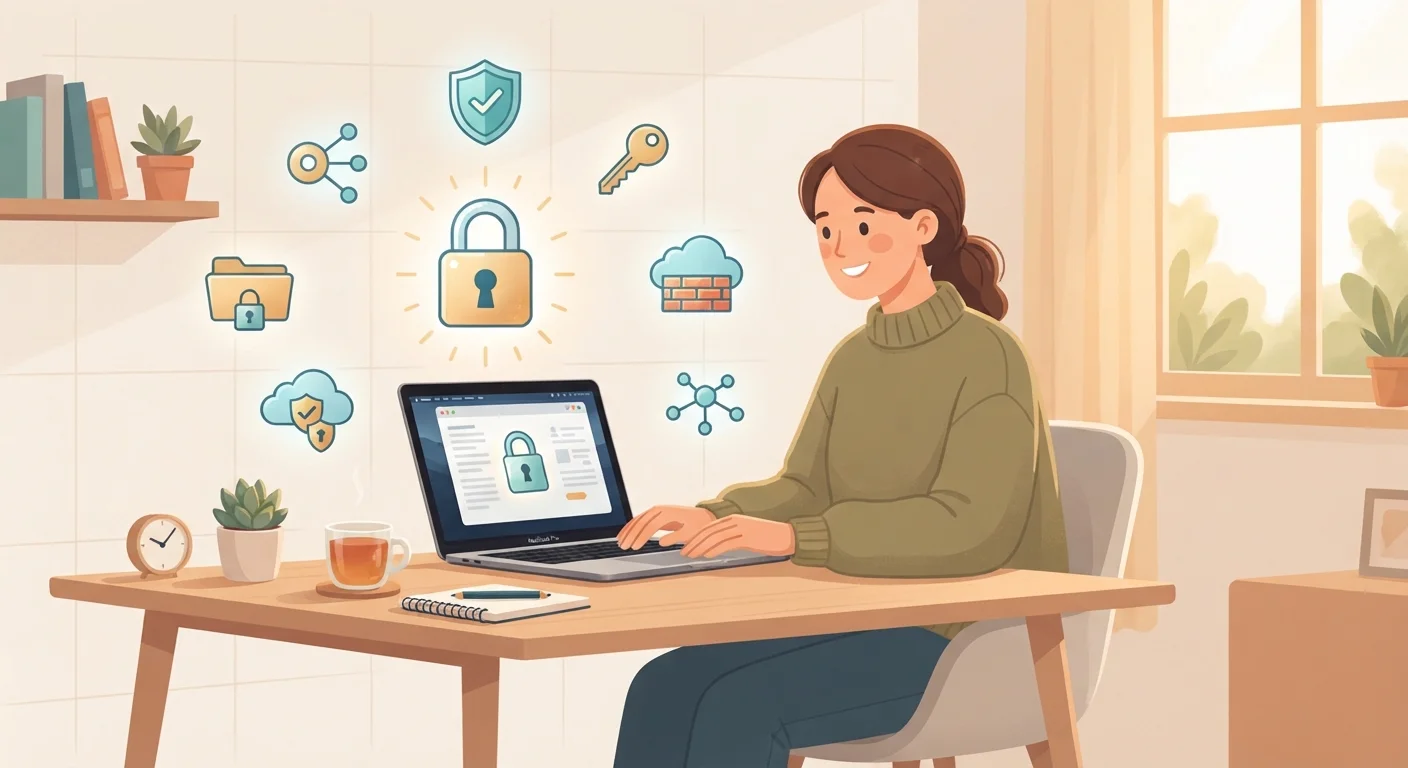
What Digital Privacy Actually Means
Digital privacy refers to your ability to control who can see, collect, use, or share your personal information when you're online. That includes obvious things like your name and email address, but also less obvious data: your location, browsing habits, purchase history, and even the times of day you use your phone.
Most people don't realize how much information they generate just by going about a normal day online. Websites track which pages you visit. Apps collect data in the background. Social platforms build detailed profiles based on what you like, share, and search for.
The goal of digital privacy isn't to disappear from the internet — it's to make deliberate choices about what you share and with whom. That's something anyone can do, regardless of technical skill. The Devices & Gadgets hub is a good companion resource if you want plain-language context on the technology involved.
81%
Data breaches involving weak or stolen passwords
According to Verizon's Data Breach Investigations Report, the overwhelming majority of hacking-related breaches involve compromised credentials.
60%+
Apps requesting more permissions than needed
Research from mobile security firms consistently finds that a majority of popular apps request access to data unrelated to their core function.
3.4 billion
Phishing emails sent daily worldwide
Industry estimates suggest phishing remains the most prevalent form of cyberattack by volume, targeting everyday users across all demographics.
Passwords: Your First Line of Defense
Weak or reused passwords remain the most common way accounts get compromised. When one site experiences a data breach, attackers try those same email-and-password combinations across hundreds of other services — a technique called credential stuffing.
Effective password practice comes down to two rules: make each password long and random, and never reuse one across different sites. A password manager — an app that generates and stores complex passwords for you — makes both rules easy to follow in practice. You only need to remember one master password.
Beyond passwords, enable two-factor authentication (2FA) wherever it's offered. This adds a second verification step (usually a code sent to your phone or generated by an app) so that even a stolen password alone isn't enough to break in.
Choose a passphrase — four or five random words strung together — as your password manager's master password. It's far harder to crack than a short complex string and much easier to remember.
Length is the primary driver of password strength. A 25-character passphrase made of random words resists brute-force attacks far better than an 8-character mix of symbols.
Use an authenticator app (rather than SMS text messages) for two-factor authentication wherever possible. It's more resistant to SIM-swapping attacks, where fraudsters redirect your phone number to a device they control.
SMS-based 2FA is better than nothing, but authenticator apps generate codes locally on your device and don't depend on your phone number remaining secure.
For a broader look at account security habits, see habits that keep most people's accounts safe.
App Permissions and What They Really Access
Every app you install on your phone may request access to your camera, microphone, contacts, location, or storage. Some of those requests make sense — a navigation app needs your location. Many don't — a flashlight app has no legitimate reason to read your contacts.
Reviewing app permissions takes under five minutes and can meaningfully limit background data collection. On both iOS and Android, you can find permissions listed under your phone's Settings menu, typically under Privacy or Apps.
Review App Permissions After Every Update
App updates can quietly add new permission requests. Make it a habit to check your privacy settings after major updates to apps you use regularly. On most smartphones, you can see a full list of what each app can access under Settings > Privacy. Revoking unnecessary permissions takes seconds and can prevent significant background data collection.
- Location: Set to "While Using" rather than "Always" for most apps.
- Microphone and Camera: Deny for any app that doesn't have a clear use for them.
- Contacts: Only allow if the app genuinely needs to interact with people you know.
Delete apps you no longer use — they may still collect data in the background even when you aren't actively using them.
Safe Browsing Habits That Actually Work
Your web browser is one of the main ways your data gets collected. A few straightforward habits make a significant difference without requiring you to change browsers or install complex tools.
Look for HTTPS in any site address before entering personal information. The "S" stands for secure — it means data sent between you and the site is encrypted in transit. Most modern browsers display a padlock icon to indicate this.
Be selective about accepting cookies. Many websites now show a prompt asking for your consent. Choosing "necessary only" or "reject all" limits the tracking data collected about your browsing behavior across the web.
Use Private Browsing for Sensitive Searches
Private or incognito mode prevents your browser from saving your search history, cookies, or form data locally on your device. It won't hide your activity from your internet provider or the websites you visit, but it's a simple layer of protection for health questions, financial research, or anything you'd rather not store on a shared device.
Consider using your browser's private or incognito mode when searching for sensitive topics. It doesn't make you anonymous online, but it does prevent your local browser from storing that history on your device.
Phishing — fake websites or emails designed to steal your login credentials — is one of the most common threats everyday users face. If a link in an email looks urgent or unexpected, go directly to the website by typing the address yourself rather than clicking through. For more on everyday device safety, see keeping your devices secure.
Protecting Your Personal Information Day to Day
The most reliable privacy protection is also the simplest: share less. Before filling out a form, creating an account, or posting something online, ask whether the recipient actually needs that information — and whether you're comfortable with it being stored indefinitely.
Social media profiles often contain more identifying detail than people realize. Full birthdate, hometown, employer, and phone number combined can be enough for someone to impersonate you or answer security questions on your accounts. Review your profile visibility settings and remove details that don't need to be public.
Avoid Oversharing on Public Wi-Fi
Public Wi-Fi networks — in coffee shops, airports, or hotels — are often unsecured, meaning others on the same network could potentially intercept unencrypted data. Avoid logging into financial accounts or entering sensitive information while on public Wi-Fi. If you regularly use public networks, a reputable VPN (virtual private network) can add a layer of encryption to your connection.
When shopping or signing up for services online, use a dedicated email address for commercial accounts rather than your primary one. This limits exposure if that service is ever breached, and makes it easier to manage unwanted marketing.
Older adults are frequently targeted by scammers who exploit gaps in digital familiarity. The guide on online safety for older adults covers the specific tactics to watch for.
Where to Go From Here
Building digital privacy is a gradual process, not a single event. Starting with strong passwords and 2FA, then working through app permissions and browsing habits, is enough to put you ahead of most threats that everyday users face.
Once you've covered the basics, it's worth doing a more systematic review of your accounts and settings. The complete digital safety audit checklist walks you through exactly that — identifying weak spots before they become problems.
Have I Been Pwned
Enter your email address to see if it has appeared in known data breaches. A straightforward first step to understanding your current exposure.
Electronic Frontier Foundation's Surveillance Self-Defense
A free, non-technical guide from a leading digital rights organization covering privacy tools and practices for everyday users.
National Cybersecurity Alliance – StaySafeOnline
US-focused cybersecurity education resource with practical tips on passwords, phishing, and account security for general audiences.
Privacy doesn't demand perfection. Each step you take meaningfully reduces your exposure and gives you more control over your own information.