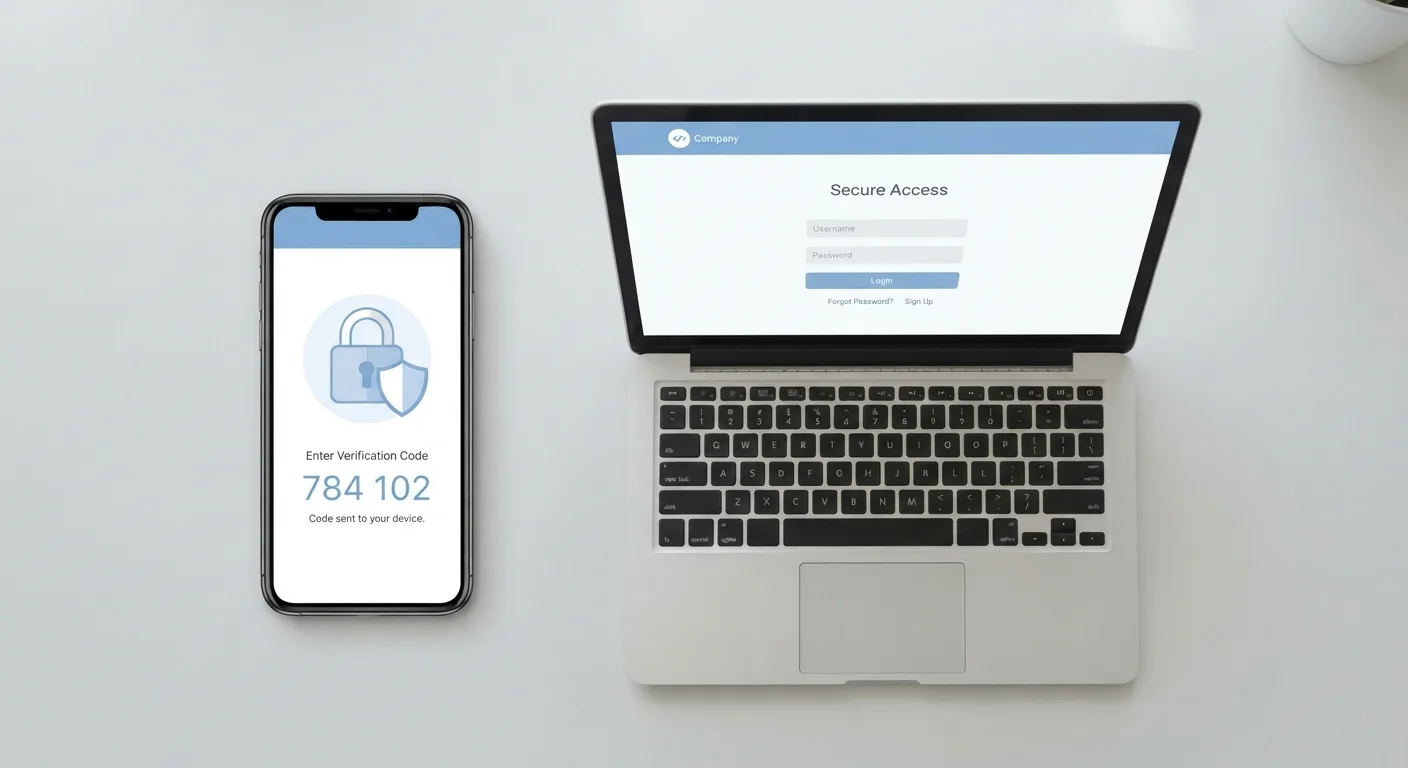
Why One Password Is No Longer Enough
Passwords get compromised more often than most people realize. They're exposed in data breaches at companies you've trusted, guessed through automated attacks that try millions of combinations, or captured when someone clicks a convincing fake login page. Once your password is out in the open, anyone who has it can walk into your account unchallenged.
The core problem is that a password is a single point of failure. It's one secret, and once it's no longer secret, it offers no protection. Two-factor authentication solves this by adding an independent second requirement — something a thief almost certainly doesn't have even after stealing your password.
80%+
Of breaches involving stolen or weak passwords
According to Verizon's Data Breach Investigations Report, the majority of hacking-related breaches leverage compromised credentials.
99.9%
Of automated account attacks blocked by MFA
Microsoft has reported that enabling multi-factor authentication blocks the vast majority of automated credential-stuffing attacks on accounts.
As part of broader everyday account safety habits, turning on 2FA is consistently ranked among the highest-impact steps you can take.
How Two-Factor Authentication Actually Works
When you log in to an account with 2FA enabled, the process adds one extra step after you enter your password. The service needs confirmation that you physically possess a trusted device or token. Here are the three most common forms:
- SMS text codes: A one-time code is sent to your registered phone number. You type it in to complete login. It's convenient but can be vulnerable to SIM-swapping attacks.
- Authenticator apps: An app installed on your phone (separate from any specific service) generates a new six-digit code every 30 seconds. These codes work offline and are not tied to your phone number, making them harder to intercept.
- Physical security keys: A small USB or NFC device you plug in or tap against your phone. This is the strongest option but requires carrying a separate piece of hardware.
In every case, an attacker would need both your password and your physical device to access your account — a dramatically higher bar to clear.
Choose an Authenticator App Over SMS When Possible
If a service offers both SMS codes and an authenticator app, choose the app. Authenticator-generated codes are not tied to your phone number, so they can't be intercepted through SIM-swapping. They also work in areas with no cell service, since they generate codes locally on your device.
Where to Turn On 2FA First
Not all accounts carry equal risk, so it helps to prioritize. Your email account deserves first attention: it's typically used to reset the passwords of every other account you own, making it the highest-value target for attackers. After email, focus on:
- Bank and financial accounts
- Social media profiles
- Cloud storage (photos, documents)
- Any account tied to a payment method
To enable 2FA, look in an account's Settings menu under "Security" or "Privacy." The option is usually labeled "Two-Factor Authentication," "Two-Step Verification," or "Login Verification." The setup process typically takes under five minutes and walks you through each step.
Pairing 2FA with strong, unique passwords gives you layered protection. If managing unique passwords sounds overwhelming, our overview of how password managers work explains one practical way to handle that. You can also explore everyday device security habits to reinforce the rest of your digital safety routine.
Save Your Backup Codes Before You Need Them
When you first enable 2FA on any account, you'll typically be offered a set of single-use backup codes. Download or print these and store them somewhere secure — a locked drawer or a trusted password manager. These codes let you regain access if you ever lose your phone or switch devices. Skipping this step is one of the most common 2FA setup mistakes.