Before You Start: What You'll Need
Switching to a new smartphone is exciting, but skipping the prep work is the number-one reason people lose data. Taking 10 minutes to get organized before you begin will save hours of frustration later.
What you will need
iCloud (iPhone users)
Used to back up all iPhone data to Apple's cloud, then restore it to a new iPhone during setup.
Google Account (Android users)
Syncs contacts, Gmail, photos, and app data to Google's servers so they can be restored on a new Android device.
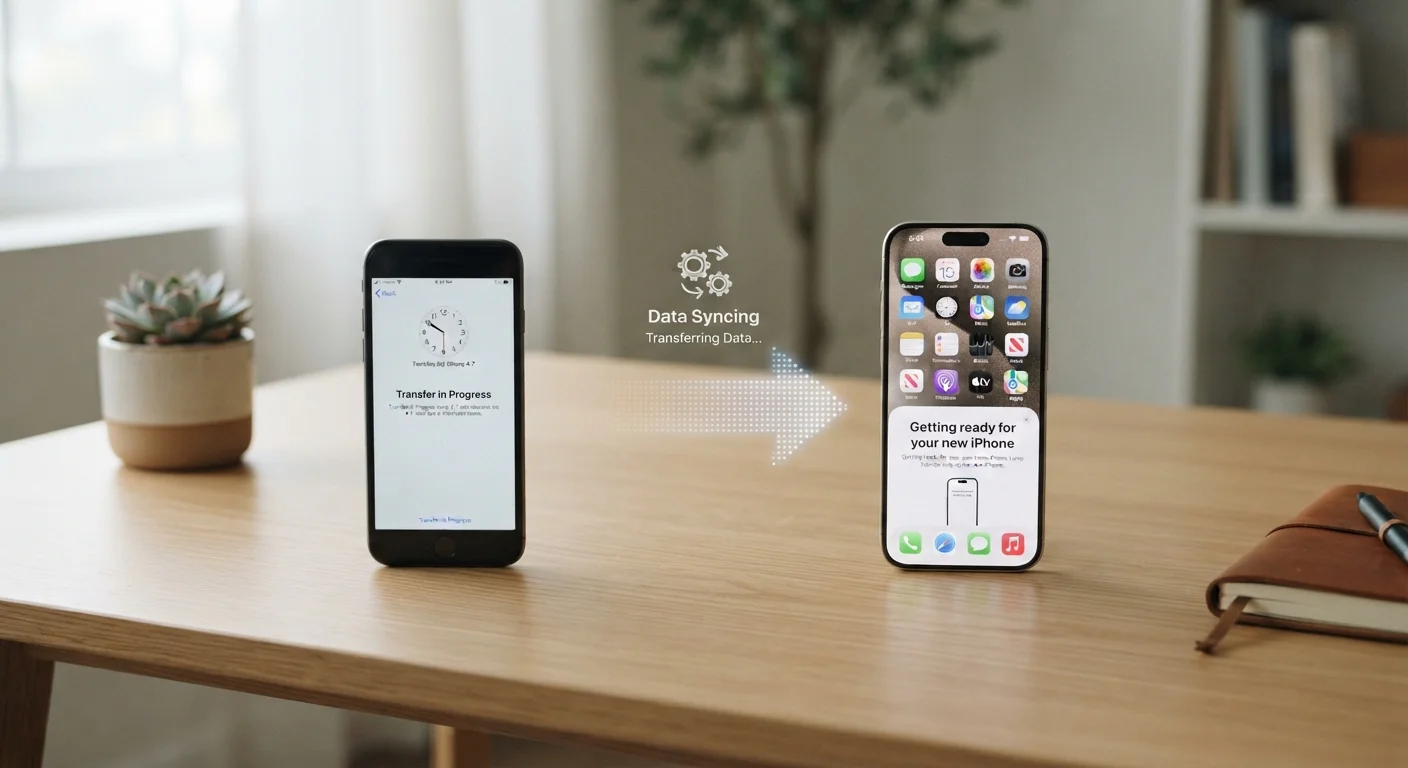
Quick Start (iPhone-to-iPhone)
Apple's built-in wireless tool that transfers data directly between two iPhones held near each other.
Google's Switch to Android app
Helps iPhone users move contacts, photos, and calendar data to a new Android phone over a wired connection.
Make sure both phones are charged to at least 50% before starting. If either device dies mid-transfer, you may need to restart the process from scratch.
How to Back Up and Transfer Your Data
The method you use depends on your phone's operating system. Both Android and iPhone have built-in migration tools that handle most of the heavy lifting automatically — no technical expertise required.
Back up your old phone
iPhone: Go to Settings → tap your name → iCloud → iCloud Backup → Back Up Now. Wait for the backup to complete fully before moving on.
Android: Go to Settings → System → Backup → Back up now. Your Google account will store contacts, app data, call history, and settings. Use Google Photos to back up your images separately.
Confirm your backup completed successfully
iPhone: After the backup finishes, you'll see a timestamp under iCloud Backup that reads "Last Backed Up: Today at [time]." Verify this reflects a recent backup, not a weeks-old one.
Android: Check Settings → System → Backup for a confirmation timestamp. In Google Photos, confirm your most recent images appear in the library.
Start setup on your new phone and choose the transfer method
Power on your new phone and follow the initial setup screens until you reach the data transfer or restore option.
- iPhone to iPhone: Use Quick Start — hold your old iPhone near the new one and follow the prompts. This transfers data directly or restores from your iCloud backup.
- Android to Android: When prompted, select "Copy apps & data from old device" and follow the on-screen steps using your Google account credentials.
- iPhone to Android: Use the Switch to Android app on your old iPhone with a USB cable to transfer core data categories.
- Android to iPhone: Use Apple's Move to iOS app (available on Google Play) on your old Android phone during iPhone setup.
Sign in to your accounts and re-download apps
Once the transfer completes, sign back in to your primary account (Apple ID or Google) and any other apps that require individual login, such as email, banking, or social media apps. Most apps restore automatically, but some may need to be re-downloaded from the App Store or Google Play.
Verify your data and re-link two-factor authentication apps
Open your contacts, photos, and key apps to confirm everything transferred correctly. Pay special attention to any authenticator apps you use for two-factor authentication (2FA) — such as Google Authenticator or Microsoft Authenticator. These apps store codes locally and must be migrated separately using each app's own transfer or export feature before you lose access to your old device.
Don't Forget Your SIM Card or eSIM
Your phone number lives on your SIM card or as an eSIM profile, not in your data backup. If your new phone uses the same SIM size, simply move the card over. For eSIM setups, contact your carrier — most allow you to transfer an eSIM to a new device through their app or account portal. Without completing this step, your new phone won't make or receive calls and texts on your existing number.
Once your data is confirmed on the new device, be cautious about immediately wiping your old phone. Give yourself a few days to make sure everything transferred correctly. When you're ready to move on, you might also want to explore features you may not have discovered yet on your new device.
After the Transfer: Security and Final Checks
A data transfer isn't truly complete until you've confirmed everything arrived and secured your new phone. Rushing past this stage is a common mistake.
Set Up a Screen Lock and Enable Find My Device
Before using your new phone day-to-day, enable a PIN, password, or biometric screen lock under your Security settings. Also turn on Find My (iPhone) or Find My Device (Android) so you can locate or remotely wipe the phone if it's ever lost or stolen. These steps take under two minutes and provide significant protection for all the personal data you just transferred.
Check your photos app, contacts list, and any apps you use daily. Pay particular attention to two-factor authentication (2FA) apps — these often need to be manually re-linked because their security codes are device-specific. For a thorough walkthrough of what to do in the first hour with any new device, see our guide on setting up a new device securely.
Don't Trade In Your Old Phone Too Quickly
Give yourself at least 48 hours of normal use on your new phone before resetting or trading in your old one. This gives you time to notice if anything is missing and retrieve it while both devices are still active. Once your old phone is wiped or returned, recovering data that didn't transfer is extremely difficult.