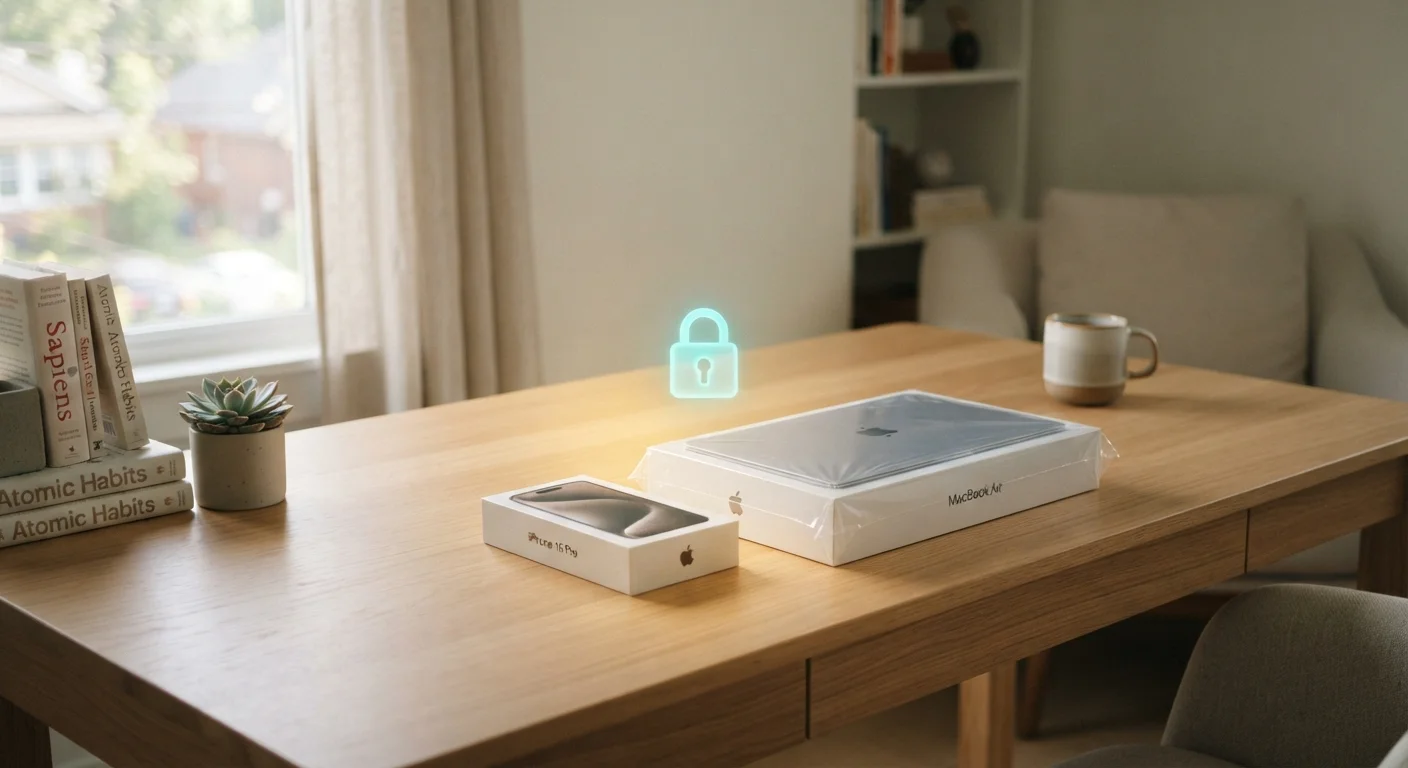
Why the First Hour With a New Device Matters
Unboxing a new phone, tablet, or laptop feels exciting — but that first hour of setup quietly determines how secure the device will be for years. Most people rush through initial configuration, accepting defaults and skipping prompts, eager to just start using it. That understandable impulse creates real, lasting vulnerabilities.
Manufacturers ship devices optimized for ease of use, not for security. Default settings often leave data collection enabled, software updates pending, and account protections at their weakest. The good news is that a handful of deliberate steps taken right at the beginning can close most of those gaps — and none of them require technical expertise.
This guide walks you through exactly what to do, in a logical order, so your new device starts life on the right footing. For a broader look at your overall digital security posture, see our complete digital safety audit checklist.
What you will need
What You'll Need Before You Begin
The setup process goes smoothly when you have a few things ready in advance. Gather the items listed in the prerequisites above, then find a quiet spot with reliable Wi-Fi. Avoid setting up a new device on public or shared networks — coffee shop and hotel Wi-Fi can expose data during the initial sign-in and update process.
Password Manager App
Generates and stores strong, unique passwords for every account so you don't have to reuse or remember them.
Two-Factor Authentication App
Provides time-based verification codes as a second login step, protecting accounts even if passwords are compromised.
Cloud Backup Service
Automatically backs up your data so it can be recovered if the device is lost, stolen, or reset.
Default Settings Are Rarely the Safest Settings
Device manufacturers and app developers often ship products with privacy settings tuned for convenience, not protection. Location sharing, ad tracking, and diagnostic data collection are commonly enabled by default. Take a few minutes to review these settings before you begin using the device in earnest.
Step-by-Step: Securing Your New Device
Follow these steps in order. Each one builds on the last, and skipping ahead can leave gaps that undermine later protections.
Don't Skip Updates on Day One
New devices often ship with software that is weeks or months out of date. Cybercriminals actively exploit these known gaps. Installing all available system updates before you sign into any account or app should be the very first thing you do — not something you schedule for later.
Install All Available System Updates
Before signing into any account, go to your device's settings and check for software updates. On most phones and tablets, this is found under Settings > General > Software Update (iOS) or Settings > System > System Update (Android). On Windows laptops, open Settings > Windows Update; on Macs, go to System Settings > General > Software Update.
Download and install everything available, then restart the device if prompted. This single step closes security holes that may have accumulated since the device left the factory.
Set a Strong Screen Lock
Navigate to your security or lock screen settings and replace any default PIN with something harder to guess. A six-digit PIN is the minimum — a longer alphanumeric passcode is stronger. If the device supports biometrics (fingerprint or face recognition), enable it as a convenient unlock method, but always pair it with a strong backup passcode.
Avoid using birthdays, sequential numbers, or repeating digits. These are the first combinations an attacker will try.
Create or Sign Into Accounts Using Strong, Unique Passwords
When you sign into your Apple ID, Google account, or Microsoft account during setup, make sure you're using a password that is at least 12 characters long and not shared with any other account. This is the ideal moment to set up a password manager if you haven't already — it can generate and store a strong password immediately.
Reusing passwords across multiple accounts is one of the most common reasons people get hacked. If one service has a data breach and your password leaks, attackers will try it everywhere.
Enable Two-Factor Authentication on Key Accounts
Go into the security settings of each major account you sign into — your email, cloud storage, and any financial or social accounts — and enable two-factor authentication (2FA). This means that even if someone gets your password, they still can't log in without a second verification step, typically a code from an authenticator app or a text message.
Authenticator apps (which generate time-based codes) are generally more secure than SMS-based codes, but both options are significantly better than no 2FA at all.
Review App Permissions and Privacy Settings
During initial setup, your device or operating system will walk you through some basic privacy choices — location services, analytics sharing, personalized ads, and similar options. Take each prompt seriously rather than tapping through quickly. Choose the most restrictive option you're comfortable with.
After setup, go to Settings > Privacy (or equivalent) and review which apps have access to your location, microphone, camera, and contacts. Revoke any permissions that don't clearly make sense for what the app does.
Set Up Automatic Backups
Enable your device's built-in backup service — iCloud for Apple devices, Google One for Android, or Windows Backup / Time Machine for computers. Set it to back up automatically, ideally daily or whenever the device is charging and connected to Wi-Fi.
If your device is ever lost, stolen, or needs to be reset due to a security incident, a recent backup means you can restore your data quickly without starting from scratch.
Use a Password Manager From the Start
If you set up a password manager during initial device configuration, every account you create going forward can have a strong, unique password without any memorization burden. Starting this habit at the beginning is far easier than retrofitting it later across dozens of accounts.
After Setup: Building Secure Habits Going Forward
Getting your new device configured securely is a strong start, but it's only the beginning. The way you use the device day-to-day determines whether those protections hold. Our guide on everyday habits that keep devices secure covers the practical routines that make the biggest difference over time.
You'll also want to think about the apps you install going forward — each one is a new potential entry point. Before installing any app, check what permissions it requests and whether they make sense. A flashlight app that wants access to your contacts and microphone is a red flag worth heeding.
For deeper guidance on managing privacy settings across your accounts — including social media — the social media privacy settings guide and the full digital privacy walkthrough are useful next steps.
Security isn't a one-time task. It's a set of habits — and the best time to start building them is the moment you power on a new device.