Why Default Settings Work Against You
Social media platforms are built around engagement and data sharing. When you create a new account, the default settings are almost never the most private option — they're typically configured to maximize visibility and allow the platform to collect and share as much data as permissible under their terms. That's not a conspiracy; it's how these services are funded. But it does mean that doing nothing leaves you more exposed than most people realize.
The good news is that you don't need to be technically savvy to improve your privacy. Most platforms give you meaningful control — it's just buried in menus most people never open. The settings covered in this guide apply broadly across major social platforms, though exact navigation paths vary by app and may change over time. When in doubt, search for "Privacy" or "Settings" within the app itself.
For a broader look at your overall digital footprint, the digital safety audit checklist is a useful companion to this guide.
What you will need
The Settings That Actually Move the Needle
Not every privacy toggle matters equally. These are the categories worth your time:
Who Can See Your Posts and Profile
Most platforms offer at least three tiers: public (anyone on the internet), friends or followers only, and custom lists. Public means searchable — your posts can appear in search engines, be seen by people you've never met, and be screenshot and shared without your knowledge. Switching your default post audience to friends or followers only is the single most impactful change most people can make. Also check your profile fields — birth date, phone number, email, and hometown are often set to visible by default.
Tagging and Mention Controls
If others can tag you in photos or posts without your approval, your image and name can appear on profiles or in feeds you didn't choose. Enable tag review (sometimes called tag approval) so you can vet any tag before it appears publicly on your profile. Similarly, control who can mention or @ your account.
Location Data
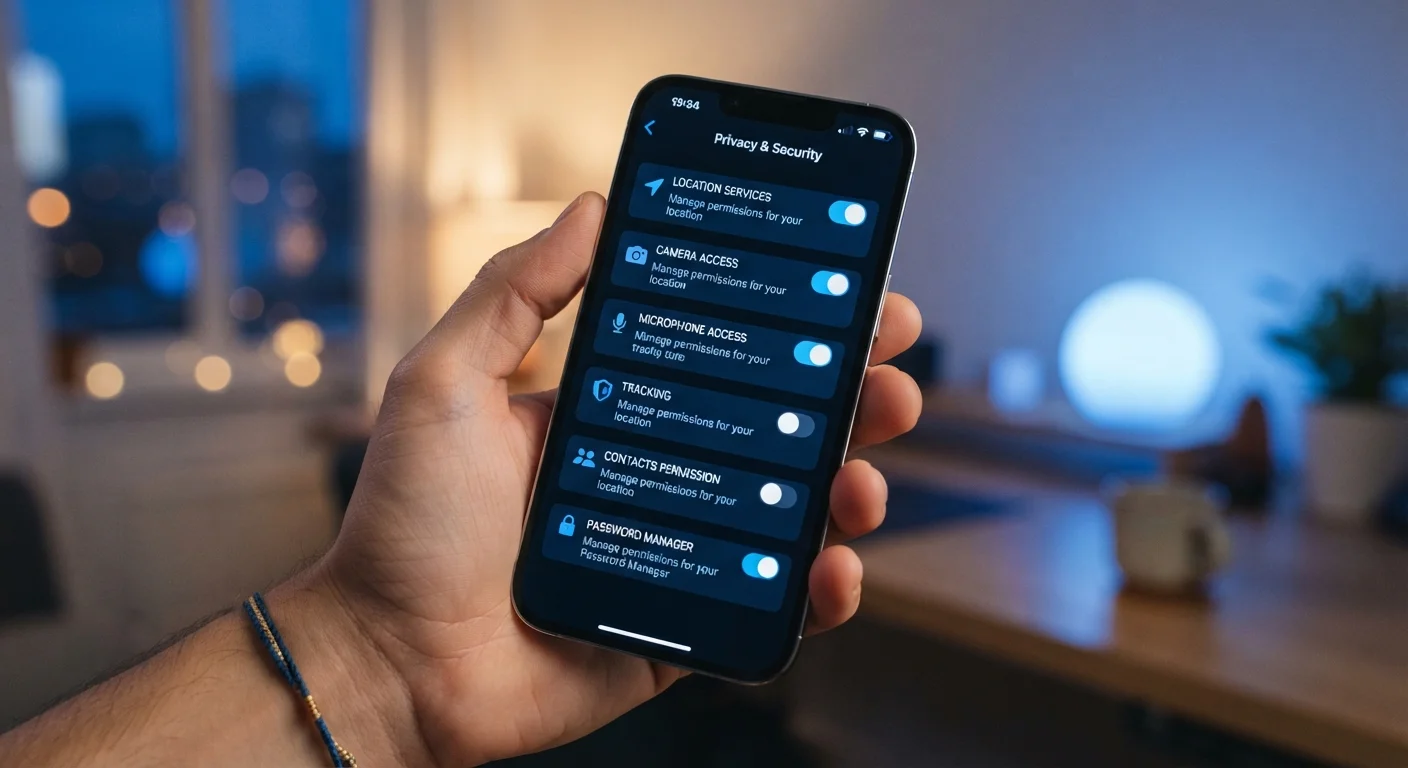
Many apps request location access to "improve your experience," but ongoing location tracking creates a detailed record of your movements. Deny location access entirely, or set it to "only while using the app" rather than "always." Also audit location metadata on photos — some platforms strip this automatically, but not all do.
Ad Personalization and Data Sharing
Look for settings labeled "Ad preferences," "Data about your activity from partners," or "Personalized ads." These control whether the platform uses your off-platform behavior — sites you visit, apps you use — to build an advertising profile. Opting out doesn't eliminate ads, but it limits the data trails connecting your activity across the web.
Check Settings After Every Major App Update
Platforms sometimes introduce new data-sharing features as opt-out rather than opt-in, meaning an update can quietly expand what's shared. After a significant app update or when you notice a platform announcing new features, it's worth a quick pass through your privacy settings to confirm nothing has changed without your knowledge.
Steps to Lock Down Your Accounts
Open Privacy Settings on Each Platform
Go to your account settings — usually accessible through a profile icon or hamburger menu — and look for a section labeled Privacy, Privacy & Safety, or Security and Privacy. Do this separately for each platform you use. Don't assume settings carry over between apps.
Set Your Default Audience to Friends or Followers Only
Find the option that controls who sees your posts by default. Change it from Public or Everyone to Friends, Followers, or the closest equivalent. On some platforms you can also retroactively limit past posts to this audience using a bulk privacy tool.
Lock Down Your Profile Information
Navigate to your profile and review each field: phone number, email address, birth date, hometown, and employer. Set each one to visible only to yourself or to close connections. This information is a common target for phishing and identity theft attempts.
Enable Tag and Mention Review
Find the tagging or mentions section within your privacy settings. Turn on tag review or tag approval so that any tag of your name or account requires your confirmation before it appears on your profile. Also check who is allowed to mention or tag you — limiting this to people you follow or are connected with is a reasonable middle ground.
Revoke Third-Party App Access
Most platforms maintain a list of third-party apps you've authorized to access your account — quiz apps, scheduling tools, login shortcuts, and more. Find this list under Apps and Websites, Connected Apps, or similar. Remove any app you no longer use or don't recognize. Each connected app is an additional exposure point if that service is breached.
Turn Off Location Sharing and Ad Personalization
In your platform's privacy or ad settings, disable location-based features you don't actively use. Then find the ad personalization controls — look for options like Use data from partners or Personalized ads — and opt out where available. Finally, check your phone's system settings to confirm the app's location permission is set to While Using rather than Always.
Once you've completed these steps, pair your social media hygiene with good account security habits. The account safety habits guide covers the routines — like strong passwords and login alerts — that complement privacy settings. And if you're thinking carefully about what you post in the first place, what to keep off social media is worth a read.
Make This a Recurring Habit, Not a One-Time Fix
Privacy settings aren't permanent. Platforms update their apps, introduce new features, and occasionally reset or expand what's shared by default — sometimes with minimal notice. Building a habit of reviewing your settings every few months takes less than ten minutes and keeps you ahead of quiet rollbacks.
You can fold this into a broader routine. The full digital privacy walkthrough covers how social settings fit alongside browser privacy, app permissions, and password practices. And if you're doing this on a phone, device security habits rounds out the picture at the hardware level.
Privacy Settings Don't Replace Account Security
Privacy settings control who sees your content — they don't protect your account from being taken over. Make sure each social account has a strong, unique password and two-factor authentication enabled. An account with perfect privacy settings but a weak password is still vulnerable. See the account safety habits guide for the basics.